
How do I Purchase a Course?
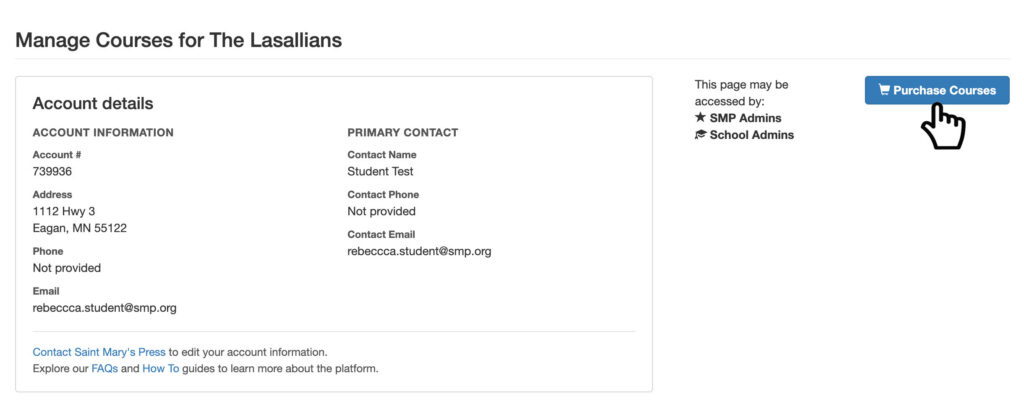
Step 1: Log in to your account. If you are a school or parish administrator, you will see a “Purchase Courses” button in the upper-right corner of the Manage Courses page.
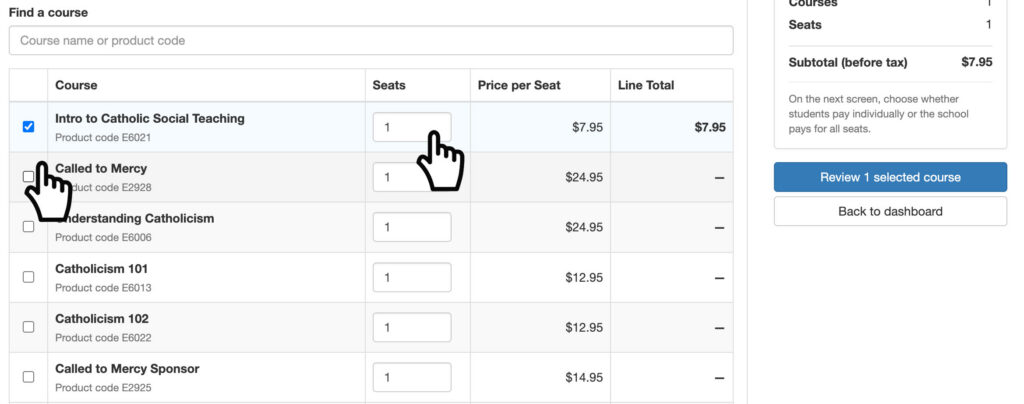
Step 2: You will be redirected to a list of courses available for purchase. Select the course or courses you would like to purchase, then enter the number of seats needed for the students who will enroll.
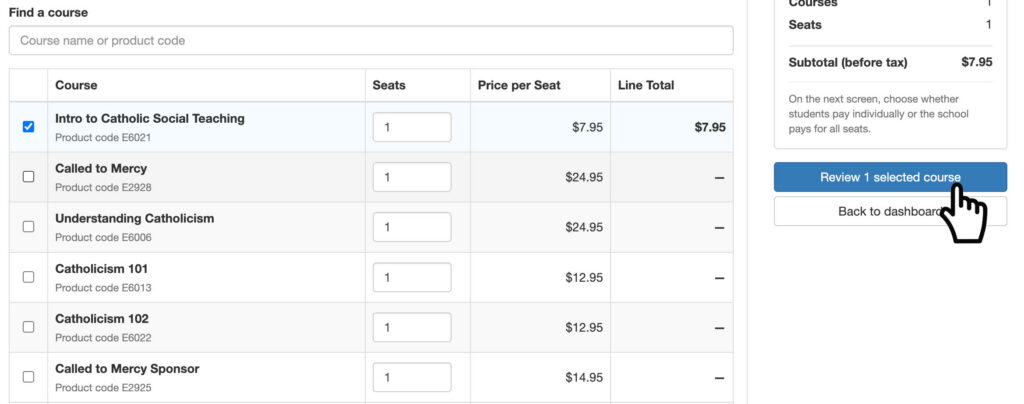
Step 3: Select “Review [Number] Courses Selected” and you will be directed to select payment options.
Step 4: In the lower-right corner, select one of the following payment options:
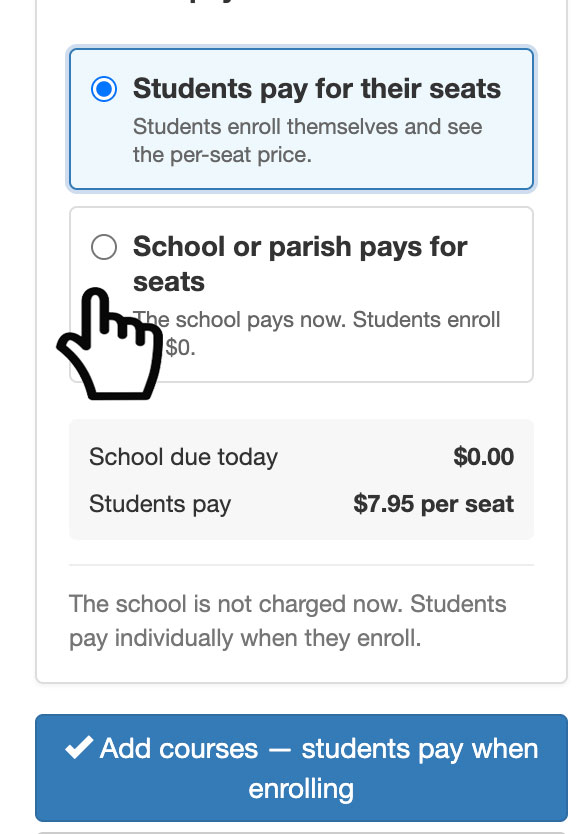
- A. Students pay for their seats: your students pay individually as they enroll using a confirmation number you provide.
- B. School or parish pays for seats: Your organization pays for all selected seats.
Step 5: After selecting a payment option, click the blue button. Depending on your selection, the button will say either “Add Course(s) – Students Pay Seats” or “Continue to School Payment.”
Step 6: If you selected “Students pay for their seats,” you will be redirected to the Manage Courses page, where you can proceed to set up the classroom section.
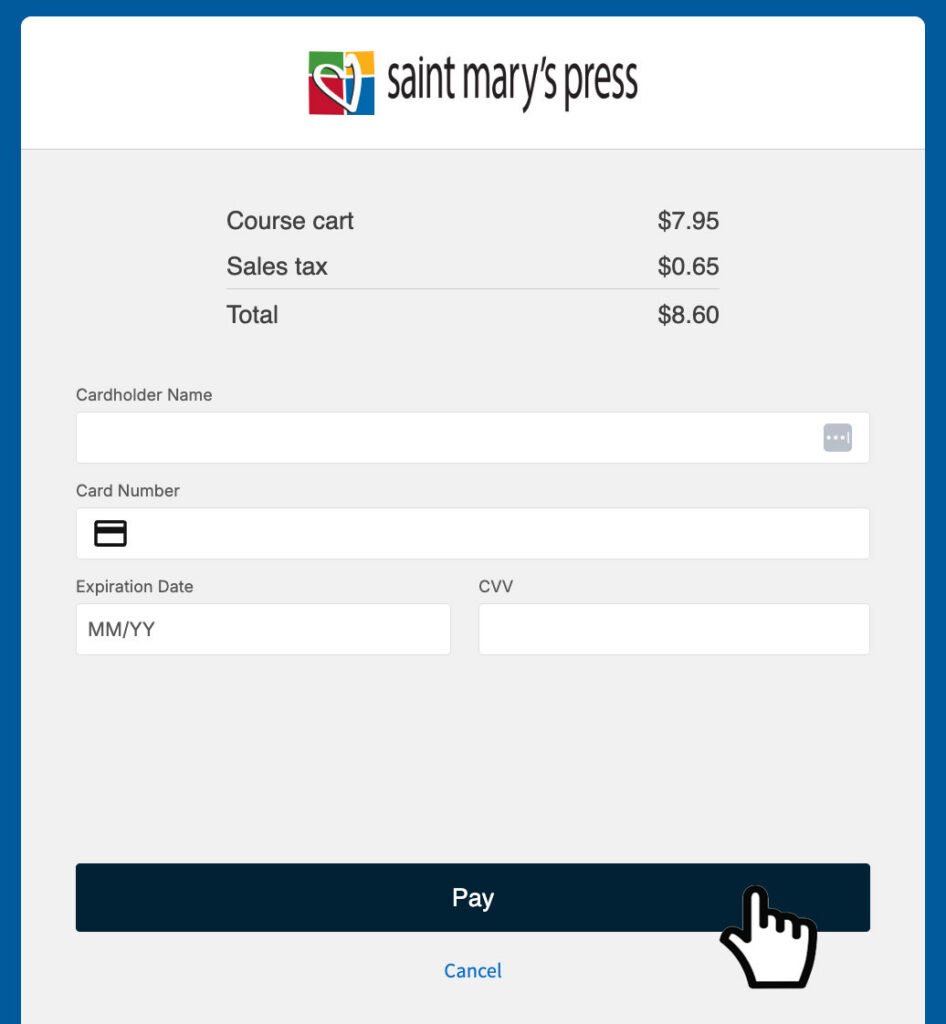
If you selected “School or Parish Pays for Seats,” enter your credit card information and select the “Pay” button at the bottom of the page.
Step 7: You will be redirected to the Manage Courses page, where a success message will appear at the top. An email confirmation will be sent to the primary contact on the account.

NOTE: If you are tax exempt and see taxes, proceed to the payment page. If taxes still appear, your tax certificate may need to be added or updated. Email your tax-exempt form to smpress@smp.org, and we will update your account. If you have further questions, call the Ministry Care Team at 1-800-533-8095.