
How Do I Set Up a Classroom Section?
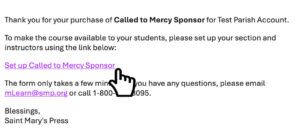
1. View your email confirmation from mLearn@smp.org about your recently added course.
2.Select the link “Set up your [Course Name]”. You will be redirected to the classroom setup page.
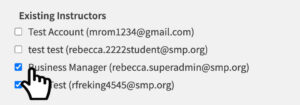
3. Enter the section name, class end date, and the names of the instructors who will teach the class section.
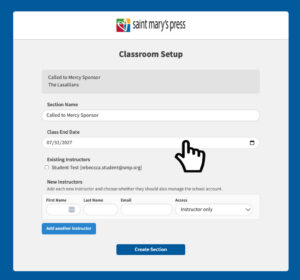
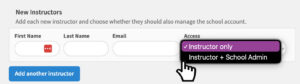
4.For each new instructor, enter a first name, last name, and email address. You will also need to specify whether the person is an instructor only or an instructor with administrator access.


5.After completing all required information, select “Create Section.” A confirmation email will be sent to your instructors.
Option 2: From Your Admin Account:
1. Log in to your account. If you are a school or parish administrator, you will see a “Set Up Course” button next to the course you added to your account.
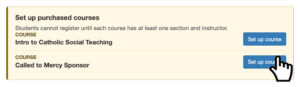
2. You will be redirected to the classroom setup page. Enter the section name, class end date and instructors you would like to teach the class.
3. New instructors will require first and last name, and email address. You will need to decide whether they are instructor or instructor with admin access.
4. After all the information has been completed, select ‘Create Section’ and an email confirmation will go out to your instructors.
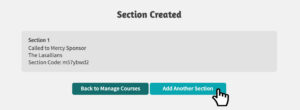
NOTE: This will create a single section. If you need to create more sections, please follow the step-by-step directions “How to Add a Section”.